
In this article
Adapted from Ragas's agent_evals.md, used under the Apache-2.0 licence. Code blocks below are reproduced exactly from that source.
Evaluating an AI agent is harder than evaluating a single model completion. An agent chooses tools, performs intermediate calculations, and returns a final value; checking only the natural-language answer can miss a wrong numeric result that happens to be phrased confidently. Ragas's agent_evals quickstart scaffolds a small project with a math-solving agent, a numeric correctness metric, and a one-command evaluation run. This guide walks through the generated project and explains what each part does. It is for engineers who need to catch regressions before merging an agent change, and for ML practitioners who want a reusable evaluation template.
The generated quickstart expects an OpenAI API key because the agent calls OpenAI. No local model weights or GPU are required for the commands shown. You do need network access and a key with billing enabled. Model cost and latency depend on the test set and model you choose. OpenAI pricing changes over time; one recent reduction is covered in this pricing update.
Prerequisites
Before you start, confirm that the following are available:
uvCLI: The project setup and execution steps useuv. Use a current release.ragasCLI:ragas quickstartmust be available on your PATH. If it is not installed, install Ragas from the repository before running the first command.- OpenAI API key: The generated agent expects the
OPENAI_API_KEYenvironment variable. The key must have billing enabled. - Network access: Both dependency installation and the model calls need outbound access.
No GPU or local model download is required for this workflow.
Step 1: Scaffold the project
The Ragas CLI creates the agent_evals template and then enters the new directory.
ragas quickstart agent_evals
cd agent_evals
This creates agent.py, evals.py, pyproject.toml, and an evals/ directory for datasets, results, and logs. The project is self-contained, so you can commit it to version control and reproduce the same structure later.
Step 2: Install dependencies
Inside the generated project, install the dependencies into a project-local environment.
uv sync
uv sync reads pyproject.toml, resolves the declared dependencies, and creates an isolated environment for the project. You do not need to create a virtualenv manually. Using the project environment is the main reproducibility guarantee for the workflow.
Step 3: Set the OpenAI API key
The agent needs a key to call OpenAI. Export it in the shell that will run the evaluation.
export OPENAI_API_KEY="your-openai-key"
Replace your-openai-key with a real key. The variable is visible only to the current shell. In CI, store the key as a masked secret and export it the same way before running the evaluation.
Step 4: Run the evaluation
Run evals.py through uv so the project virtual environment is used.
uv run python evals.py
The generated project includes an evals/datasets/ directory for test cases, an evals/experiments/ directory for result artifacts, and an evals/logs/ directory for execution logs. The evaluation uses those locations.
The correctness metric returns 1.0 when the agent's numeric prediction matches the expected value within a tolerance of 1e-5, and 0.0 when it does not. The reason string attached to each metric records both the prediction and the actual value, which is useful when the model returns a close but wrong decimal.
Step 5: Inspect the project structure
The generated tree shows where each component lives.
agent_evals/
├── README.md              # Project documentation
├── pyproject.toml         # Project configuration
├── agent.py               # Math solving agent implementation
├── evals.py               # Evaluation workflow
├── __init__.py            # Python package marker
└── evals/
    ├── datasets/          # Test datasets
    ├── experiments/       # Evaluation results
    └── logs/              # Execution logs
The table below maps each component to its role in the workflow and what happens if it is missing or misconfigured.
| Component | Role in workflow | What happens if missing or broken |
|---|---|---|
agent.py |
Defines the math-solving agent and its calculator tools. | Imports in evals.py fail; no evaluation can run. |
evals.py |
Loads test cases, runs the agent, and applies the correctness metric. | No evaluation output or results are produced. |
evals/datasets/ |
Holds the math expressions used as test inputs. | The test set is empty or skipped; results become meaningless. |
evals/experiments/ |
Stores evaluation result artifacts after each run. | Results are lost or cannot be compared across runs. |
evals/logs/ |
Stores execution logs for debugging. | Failures are harder to diagnose. |
pyproject.toml |
Declares project dependencies and settings for reproducible installs. | uv sync fails or installs the wrong dependencies. |
Step 6: Invoke the agent directly
Before changing any evaluation logic, confirm that the agent is importable and callable. The following snippet tests the agent outside the full evaluation script.
from agent import get_default_agent

math_agent = get_default_agent()
result = math_agent.solve("15 - 3 / 4")
get_default_agent() returns a configured agent with calculator tools. The solve() call asks the agent to work through the expression step-by-step and return a numeric answer. Use this snippet when debugging import or tool configuration problems.
Step 7: Understand the correctness metric
The evaluation applies a binary numeric metric. The implementation is small and directly shows what a passing case means.
@numeric_metric(name="correctness", allowed_values=(0.0, 1.0))
def correctness_metric(prediction: float, actual: float):
    result = 1.0 if abs(prediction - actual) < 1e-5 else 0.0
    return MetricResult(value=result, reason=f"Prediction: {prediction}, Actual: {actual}")
The @numeric_metric decorator declares the metric name and restricts its allowed values to 0.0 and 1.0. The function compares the agent's final prediction to the expected value with an absolute tolerance of 1e-5. If the difference is below that threshold, the case passes; otherwise it fails. The reason string captures both numbers, making the result auditable.
Limits to watch
The tolerance is absolute, not relative. A difference of 1e-5 is strict when the expected value is large. If your test set later includes expressions such as 1e12 + 1e-8, floating-point precision may cause a false failure even when the agent's math is conceptually correct. Adjust the threshold only if you understand the precision tradeoff.
The quickstart is not a local model benchmark. Large test sets mean more model calls and a larger bill, so start small and monitor usage. Results are also only as stable as the underlying model behavior; the same expression can produce different tool sequences and different final answers across runs.
Run the evaluation through uv, not system Python. The dependencies are isolated in the project environment. Running python evals.py outside uv will often fail with missing packages. In CI, the exact command should be uv run python evals.py.
A 0.0 score does not tell you where the agent went wrong. The metric only checks the final numeric result. It will pass a case where the agent used an incorrect intermediate step but still returned the right final number. It will also fail a case where the numeric answer is correct but formatted as text. Keep the logs and reason string for diagnosis.
The API key is shell-only. The export disappears when the shell closes. In CI, use masked secrets and never commit the key to the repository. If you are sharing the project, confirm that the generated files do not contain a key before pushing.
Where to go next
Start by running the quickstart unchanged. Then replace the math expressions in evals/datasets/ with cases that match your actual agent task. For non-numeric checks, add a custom metric that uses the same MetricResult shape shown in the generated code. Run the same uv run python evals.py gate in pre-merge CI, and the quickstart becomes a regression harness instead of a one-off demo.
Frequently asked questions
How do I run the Ragas agent_evals quickstart?
Run `ragas quickstart agent_evals`, then `cd agent_evals`, `uv sync`, export `OPENAI_API_KEY`, and run `uv run python evals.py`. The quickstart scaffolds `agent.py`, `evals.py`, and an `evals/` directory. Use `uv run` so the project virtual environment is used instead of system Python.
What does the Ragas agent_evals correctness metric check?
It compares the agent's final numeric prediction to the expected value with an absolute tolerance of `1e-5`. A difference below that threshold returns `1.0`; otherwise it returns `0.0`. The reason string stores both the predicted and actual values for debugging.
Do I need a GPU to run Ragas agent_evals?
No. The commands shown call OpenAI through the `OPENAI_API_KEY` environment variable, so no local model weights or GPU are required. You still need network access and a billing-enabled OpenAI API key.
Why should I use uv run python evals.py instead of python evals.py?
`uv sync` installs the project dependencies into an isolated environment. `uv run` executes the command inside that environment, so the generated dependencies are available. Running system `python evals.py` outside the project environment often fails with missing package errors.
How do I avoid committing my OpenAI API key in the Ragas quickstart?
Export the key only in the current shell or store it as a masked CI secret. Never write the key into the generated project files before committing. The workflow expects the `OPENAI_API_KEY` environment variable, so a masked secret exported before `uv run python evals.py` is enough.
Can I use the Ragas agent_evals workflow for tasks other than math?
Yes, but the default metric is numeric only: it compares floats within `1e-5` and returns `0.0` or `1.0`. Replace the math expressions in `evals/datasets/` with your own cases, and add a custom metric that returns the same `MetricResult` shape for non-numeric outputs.
Related Guides

Generate Synthetic RAG Test Sets With Ragas
Build, save and reuse a Ragas knowledge graph to generate single-hop and multi-hop evaluation queries from Markdown documents.
Generate and Run a Python Expression with Outlines
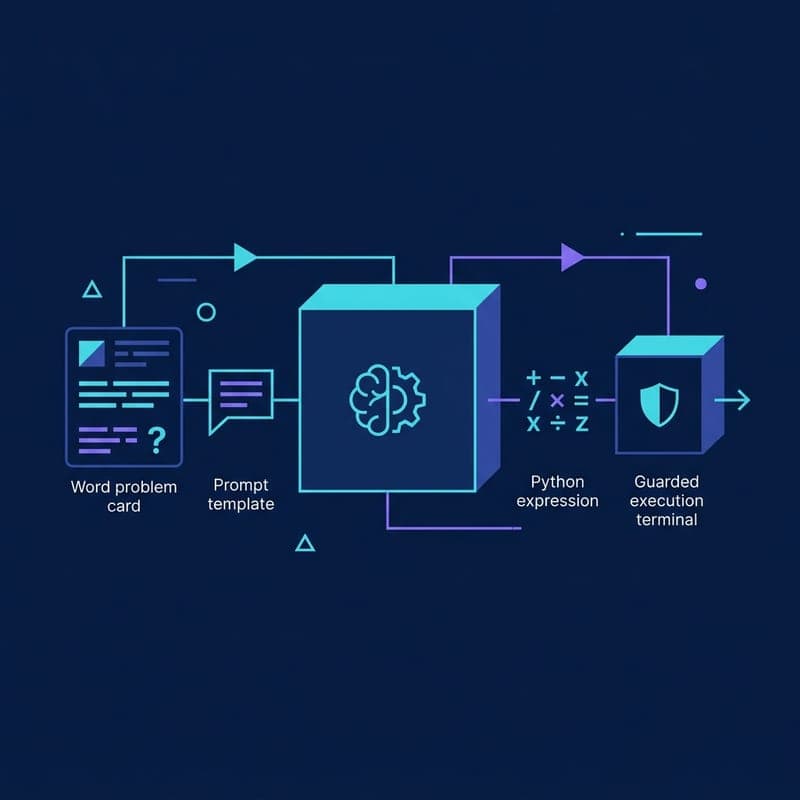
Use Outlines and GPT-4o mini to turn a word problem into a Python expression, execute it, and understand the risks of eval.
Automate Prompt Optimization with DSPy GEPA
Use DSPy's GEPA optimizer to automatically improve LLM prompts with scored examples and a reflection model — no hand-tuning required.