
Self-Hosted LLM Guide 2026: Run AI Locally for Privacy & Savings
In this article
- The Local LLM Infrastructure Stack
- 1. Ollama — The Seamless Entry Point
- 2. llama.cpp — Maximum Efficiency and Control
- 3. vLLM — High-Throughput Production Engines
- Hardware Requirements & VRAM Allocation
- Setup & Deployment Guide
- Deploying with Ollama
- Deploying with llama.cpp
- Deploying with vLLM
- Inference Optimization & Fine-Tuning
- Security Considerations
- Summary
Self-hosted Large Language Models (LLMs) have become more practical and accessible than ever. With tools like Ollama streamlining installations to a single command and consumer GPUs running models that recently required enterprise-grade clusters, the landscape has shifted. If you want to keep your data private, bypass escalating cloud API costs, or build AI applications without relying on third-party uptime, self-hosting is the ideal path.
By the end of this guide, you will understand the local LLM stack, the hardware requirements for various model sizes, how to configure Ollama, llama.cpp, and vLLM, and key optimization techniques for maximum performance.
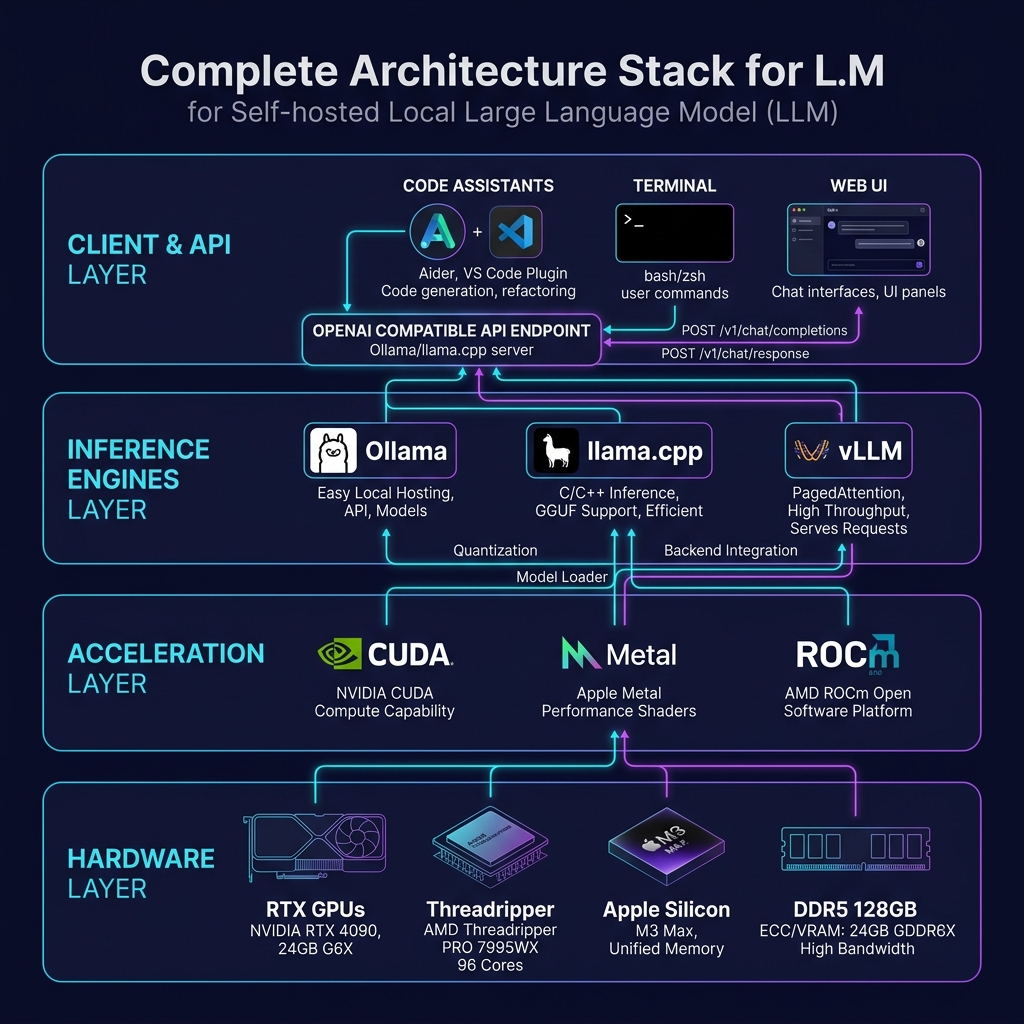
The Local LLM Infrastructure Stack
Choosing the right tool depends on your target throughput, configuration needs, and technical comfort level.
1. Ollama — The Seamless Entry Point
Ollama simplifies local deployment by managing model retrieval, GPU memory allocation, and API serving automatically. It is compatible with macOS, Linux, and Windows.
- Best For: Rapid development, local prototyping, and general developer workloads.
2. llama.cpp — Maximum Efficiency and Control
Written in pure C/C++, llama.cpp powers much of the local inference ecosystem. It provides the lowest overhead and supports a wide range of quantization formats (GGUF).
- Best For: Maximum execution performance, granular configurations, and resource-constrained systems.
3. vLLM — High-Throughput Production Engines
vLLM utilizes PagedAttention to optimize memory allocation for key-value (KV) caches, enabling massive concurrency and request throughput.
- Best For: Serving multiple client applications or scaling local models inside enterprise environments.
Hardware Requirements & VRAM Allocation
Your system's Video RAM (VRAM) dictates the size of the model you can run. Because LLM weights must reside entirely in GPU memory for fast inference, memory capacity is more critical than raw compute speed.
To fit larger models into consumer-grade hardware, we use quantization (e.g., converting 16-bit floats to 4-bit or 5-bit integers). This reduces the model size by up to 75% with minimal impact on output accuracy.
| Tier Name | Target GPU Config | Available VRAM | Model Capacity & Performance |
|---|---|---|---|
| Budget / Entry | NVIDIA RTX 3060 / 4060 Ti | 12GB – 16GB | Runs 7B to 8B models (e.g., Llama 3.2, Qwen 2.5) at full precision; runs 13B models with Q4 quantization. |
| Sweet Spot | NVIDIA RTX 4090 / Mac Studio | 24GB – 32GB | Runs 34B models with Q4 quantization; runs 13B models at full 16-bit precision. Great for developer workstations. |
| Prosumer | RTX 6000 Ada / Dual RTX 4090s | 48GB | Runs 70B models with Q4/Q5 quantization. Handles concurrent model hosting or complex coding models. |
| Enterprise Server | NVIDIA A100 / H100 / H200 | 80GB+ | Runs 70B models at full unquantized precision. Highly scalable for multi-user production workloads. |
Setup & Deployment Guide
Deploying with Ollama
Installing Ollama is simple. Run the official installation script:
# Install Ollama (macOS and Linux)
curl -fsSL https://ollama.com/install.sh | bash
Once installed, you can pull and execute models from the command line:
# Retrieve a model from the registry
ollama pull llama3.2

# Start an interactive CLI chat session
ollama run llama3.2

# Explicitly launch the background API server
ollama serve
Integrating Ollama in Code
Ollama automatically exposes an API endpoint on port 11434. You can interface with it using the native Python library:
import ollama

response = ollama.chat(
    model='llama3.2',
    messages=[
        {'role': 'user', 'content': 'Write a Python function to calculate factorial'}
    ]
)
print(response['message']['content'])
Alternatively, you can use the OpenAI-compatible endpoint route to integrate with existing application frameworks:
from openai import OpenAI

client = OpenAI(
    base_url="http://localhost:11434/v1",
    api_key="ollama"  # Standard placeholder key
)

response = client.chat.completions.create(
    model="llama3.2",
    messages=[{"role": "user", "content": "Hello, how can you help me today?"}]
)
print(response.choices[0].message.content)
Deploying with llama.cpp
For custom builds and minimum overhead, compile llama.cpp from source:
# Clone the repository
git clone https://github.com/ggerganov/llama.cpp
cd llama.cpp

# Compile the project
make
To enable GPU acceleration on NVIDIA hardware, compile with CUDA support:
# Compile with CUDA acceleration
make LLAMA_CUDA=1
Once compiled, download a GGUF model from Hugging Face and run the CLI interface:
# Execute inference using a GGUF model file
./build/bin/llama-cli \
  -m models/llama-7b-q4_k_m.gguf \
  -n 512 \
  -c 4096 \
  --temp 0.7
Deploying with vLLM
For multi-user scenarios and low latency concurrency, install vLLM and serve any model hosted on Hugging Face:
# Run vLLM with Hugging Face models
vllm serve meta-llama/Llama-3.1-8B-Instruct \
  --dtype half \
  --tensor-parallel-size 2
Inference Optimization & Fine-Tuning
To get the most tokens per second, leverage these settings:
- Context Window Limitations: Restricting the active context size saves VRAM. 4K context is standard for entry configurations, while 8K to 16K works well on mid-range GPUs.
# Ollama: Specify custom context length ollama run llama3.2 -c 8192 # llama.cpp: Custom context parameter ./main -c 8192 -m model.gguf - Inference Batch Size: Adjusting the prompt processing batch size improves speeds when handling long input queries.
# llama.cpp: Configure batch size
./main -b 512 -m model.gguf
Security Considerations
While running models locally protects your data from being uploaded to external servers, you should still implement basic security protocols:
- Validate Model Sources: Only download files from trusted authors on Hugging Face to avoid malicious execution scripts or corrupted weights.
- Isolate the API Server: If you expose the API port (
11434), bind it to127.0.0.1unless you have configured authentication proxies. - Resource Limits: Limit the memory and GPU allocation bounds to prevent local inference services from starving system processes of hardware resources.
Summary
Self-hosted LLMs are closing the gap with cloud services, providing private, cost-effective, and highly customizable alternatives. Starting with Ollama is the fastest way to get up and running, while llama.cpp and vLLM offer scaling paths for performance and production.
To see how you can put these local models to work in a retrieval pipeline, check out our local RAG with Ollama tutorial to build context-aware assistants running entirely on your own machine.
Related Guides
How to Run Local LLMs Securely Using Ollama
A step-by-step tutorial on installing Ollama, pulling models like Llama 3, and running private queries without data leaks.
Run LLMs Locally: 6 Practical Methods (Ollama, LM Studio, vLLM, Jan, llama.cpp, and llamafile)
Master 6 proven frameworks to host and run LLMs locally across Windows, macOS, and Linux with GPU acceleration, from one-click GUIs to high-throughput production servers.
Apple Tightens macOS Full Disk Access Over AI Agent Privacy Risk
Apple is requiring 'very explicit user action' before any app can receive Full Disk Access, citing AI agents as a new and growing threat to user privacy.